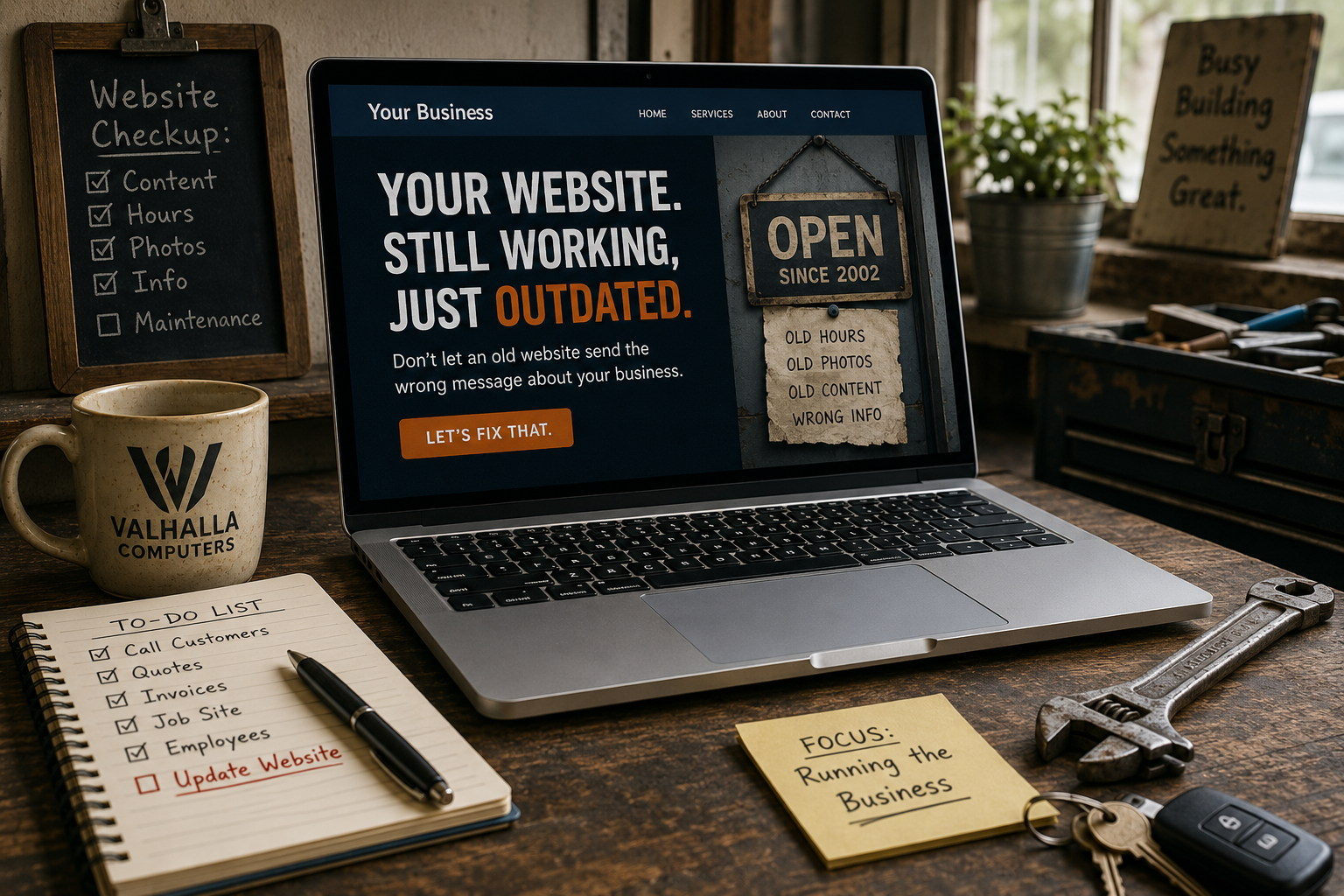
Running a website has a funny way of expanding the number of jobs you suddenly need to know how to do. One day you are writing an article, the next you are resizing photographs, editing HTML, uploading files to a server, opening a ZIP archive, trying to figure out why Google has not indexed a page, and staring at an error message wondering what you broke this time.
Fortunately, owning or managing a website does not require buying hundreds or thousands of dollars worth of software.
Some of the best tools available for website owners are completely free, and several of them are powerful enough that there is little reason for the average small-business owner to purchase an expensive alternative. Others use a free tier that is more than sufficient for a normal small or medium-sized website.
The important part is knowing the tools exist before you desperately need them.
This is not a list filled with seven-day trials disguised as free software. Where a program has a paid version or limitation, we will tell you what it is. The goal is to assemble a practical toolbox that can handle writing, graphics, file transfers, coding, troubleshooting, compression, SEO and website performance without requiring another pile of monthly subscriptions.
1. WinSCP — Moving Files Between Your Computer and Your Website
If you manage a website long enough, eventually there will come a moment when the WordPress dashboard is not enough and you need direct access to the files sitting on the server. Maybe you need to upload a plugin manually, replace a damaged file, download a backup, inspect an error log or remove something that broke the site badly enough that you cannot even reach the administration panel.
That is when you need an FTP or SFTP client.
Our top free FTP client pick is WinSCP, particularly for Windows users. It supports FTP and FTPS as well as the much more desirable SFTP protocol, along with SCP, WebDAV and Amazon S3. It gives you a familiar two-pane interface where files on your computer appear on one side and files on the remote server appear on the other, making transfers about as complicated as dragging something from one folder to another.
WinSCP also supports directory synchronization, remote file editing, scripting and automation, so it remains useful even after you move beyond the basics. The current WinSCP 6.5 series was updated again in September 2026, so this is very much an actively maintained tool rather than an ancient FTP program kept alive by twenty-year-old tutorials.
For most website owners, you will not use WinSCP every day. When something goes wrong at 1:30 in the morning and the only way to fix it is through direct server access, however, you will be very glad it is already installed.
2. Apache OpenOffice — Writing, Spreadsheets, Planning and Just About Everything Else
Before anything goes onto a website, much of it starts life somewhere else. Articles have to be written, product lists have to be organized, prices have to be calculated, CSV files need to be created, customer information has to be managed and occasionally somebody insists on sending you a spreadsheet.
That makes a good office suite one of the most useful tools in the box.
Apache OpenOffice gives you Writer for documents, Calc for spreadsheets, Impress for presentations, Draw for graphics and diagrams, Base for databases and Math for equations. It is free to download and use, and the current 4.1.16 release arrived in November 2025. Apache describes it as compatible with other major office suites and able to read and write a wide range of document formats.
For website work, Writer is excellent for drafting long articles away from the WordPress editor, while Calc is invaluable for maintaining product inventories, keyword lists, pricing calculations, content schedules and CSV files for importing information into other applications.
It gives the average user much of the functionality people purchase Microsoft Office for without the associated price tag. Or, as it has occasionally been affectionately referred to around here, Microsoft Orifice.
You are welcome.
OpenOffice is not a clone of every modern Microsoft 365 feature, and users deeply embedded in Microsoft’s collaboration ecosystem may still need the real thing. For writing articles, creating spreadsheets, keeping lists and handling the routine office work surrounding a website, however, the cost-to-capability ratio is difficult to argue with because the cost is exactly zero.
3. GIMP — Serious Image Editing Without Paying for Photoshop
Images matter enormously on the web. Product photographs need cropping, screenshots need cleaning, featured images need resizing, backgrounds occasionally need removing and files often need to be compressed before somebody uploads a twelve-megabyte photograph directly from a camera and wonders why the website takes forever to load.
GIMP, the GNU Image Manipulation Program, is one of the most capable free image editors available. It runs on Windows, macOS and Linux and includes layers, masks, selections, color correction, transformations, text tools, filters, plugins and many of the functions people associate with professional raster-image editors. GIMP 3.2.4 was released in April 2026, and the project remains actively developed.
There is a learning curve. GIMP is not the sort of application where someone who has never edited an image will immediately understand every button. You also do not need to learn every button.
For website work, learning how to crop, resize, adjust brightness and contrast, remove simple backgrounds, work with layers and export optimized JPEG, PNG or WebP images gets you surprisingly far.
If your website uses photographs, screenshots or custom graphics, an image editor is not optional forever. Eventually you will need one, and GIMP is powerful enough that many users will never need to replace it.
4. Visual Studio Code — When You Need to Look Under the Hood
You do not have to be a programmer to run a website, but sooner or later you will probably need to look at HTML, CSS, JavaScript, PHP, JSON or some other file containing enough punctuation to frighten a normal human being.
Do not edit those files in a regular word processor.
Use a proper code editor.
Visual Studio Code, usually shortened to VS Code, is available free for Windows, macOS and Linux. It provides syntax highlighting, search and replace, code completion, extensions, integrated terminals, project folders and tools that make source code considerably easier to understand and edit than plain text dumped into Notepad. Microsoft continues to update VS Code frequently, and its current documentation describes weekly Stable releases.
You may only need it occasionally. Perhaps someone gives you a CSS snippet and you want to inspect it before adding it to WordPress. Maybe you need to search an entire group of files for one URL, modify a configuration file or compare two versions of something that stopped working.
A proper editor makes those jobs safer and easier.
The growing AI capabilities inside VS Code are optional, which is worth mentioning given our repeated emphasis on using AI to help rather than blindly changing a live website. You can still use VS Code perfectly well as a conventional editor without signing in for AI features.
5. 7-Zip — Because Websites Produce an Amazing Number of ZIP Files
This may be the least glamorous tool on the list, but it is also one of the programs I would install almost automatically on a Windows computer.
Website work involves compressed files constantly. Themes arrive as ZIP files. Plugins arrive as ZIP files. Backups become archives. Download packages need extracting. Entire website directories may need compressing before they are moved somewhere else.
7-Zip handles all of that without drama.
It supports ZIP, 7z, TAR, GZIP and numerous other archive formats and can also extract formats including RAR, ISO, VHD, VHDX and many more. It supports AES-256 encryption for 7z and ZIP archives, integrates with Windows and is completely free even for commercial use. Version 26.03 was released on September 3, 2026.
It is also useful when preparing files for clients or website downloads. Instead of emailing twenty separate documents, put them into one archive. When you want to preserve a local copy of a website directory before changing something, compress it and label it with the date.
It is not exciting.
Neither is a fire extinguisher until something catches fire.
6. Chrome DevTools — The Tool You Probably Already Have
One of the most useful website-development tools may already be installed on your computer without you realizing how much it can do.
If you use Google Chrome, Chrome DevTools is built directly into the browser. Right-click something on a webpage and choose Inspect, and suddenly you can see the HTML behind the page, inspect the CSS controlling an element, watch network requests, view JavaScript errors, investigate storage and caching, measure performance and temporarily change page elements without changing the actual website.
That last part is particularly useful.
Suppose you think a heading would look better at 42 pixels instead of 34. Rather than repeatedly changing the website and refreshing the page, you can experiment inside DevTools until you know what looks right. The temporary changes disappear when the page reloads, so you can experiment without actually breaking the live site.
The Network panel can show you files that are taking too long to load. The Console can expose JavaScript errors. The Elements panel lets you inspect and temporarily modify HTML and CSS. Chrome even includes performance tools and Lighthouse-related capabilities for analyzing Core Web Vitals and other page-quality issues.
For anyone trying to learn how websites work, DevTools is also an outstanding educational tool because you can inspect almost any page and see how the browser constructed it.
You already paid for it.
Well, technically you didn’t pay for Chrome either.
7. Google Search Console — Find Out What Google Thinks of Your Website
You can build the greatest website in the world, but if Google cannot properly crawl or index it, a large portion of the Internet may never know it exists.
Google Search Console provides website owners with information directly from Google about how their site appears in Google Search. You can see search queries producing impressions and clicks, monitor average positions, submit XML sitemaps, inspect individual URLs, investigate indexing problems and receive alerts when Google discovers certain issues.
The URL Inspection tool alone makes Search Console worth setting up. If a page is not appearing in search results, you can examine Google’s information about the URL instead of guessing whether it has been crawled or indexed.
Search Console also provides Core Web Vitals information and reports relating to search appearance and structured data.
There are paid SEO platforms capable of producing enormous reports filled with impressive graphs, and some of them are excellent. Search Console remains unique because this particular information is coming from Google itself.
For a new website, I would consider connecting Search Console part of the setup process rather than something to think about six months later.
8. Google PageSpeed Insights — Find Out Why Your Website Feels Slow
A website can look wonderful sitting on your own computer while performing terribly for somebody using a midrange phone on a slower connection.
PageSpeed Insights gives you a free way to examine that problem.
Enter a webpage address and Google analyzes its performance on mobile and desktop, providing information about loading speed, Core Web Vitals and opportunities for improvement. The service is specifically designed to help evaluate and improve web-page performance across devices.
The trick is not to become obsessed with achieving a perfect score of 100.
A website exists for humans, not for a speed-test scoreboard. If removing one useful image increases your score from 96 to 99 but makes the page worse for customers, you have accomplished very little.
Use PageSpeed Insights as a diagnostic tool. It can help identify oversized images, render-blocking resources, slow server responses, layout shifts and other issues that may be hurting the visitor experience.
Run it after major design changes. Run it after adding new plugins. Run it when a page suddenly feels slower than it used to.
Most importantly, read what it tells you instead of simply staring at the number at the top.
9. Inkscape — Logos, SVGs and Vector Graphics Without Adobe Illustrator
GIMP handles raster images such as photographs extremely well, but logos and scalable graphics are a different animal.
That is where Inkscape belongs in the toolbox.
Inkscape is a free, open-source vector graphics editor available for Windows, macOS and Linux. Because vector graphics are built from mathematical shapes rather than fixed pixels, they can scale from a tiny website icon to a large printed sign without turning into a blurry mess.
That makes Inkscape useful for logos, icons, diagrams, SVG graphics, simple illustrations and other design elements that may need to appear at different sizes.
The current 1.4.4 release arrived in May 2026 and included numerous crash fixes, bug fixes and performance improvements, so it remains an actively maintained project.
You do not necessarily need both GIMP and Inkscape every day, but they solve different problems. Think of GIMP as the tool for photographs and pixel-based artwork, while Inkscape handles shapes, logos and graphics that need to remain perfectly sharp at any size.
Together they cover an enormous amount of the graphic work a normal website owner is likely to encounter.
10. Screaming Frog SEO Spider — Let a Robot Crawl Your Website Before Google Does
Once a website grows beyond a handful of pages, checking everything manually becomes increasingly unrealistic.
Did you accidentally create a broken link six months ago? Are three pages missing titles? Did an old redirect stop working? Are multiple pages using the same description? Did you somehow create a link to a page that no longer exists?
Screaming Frog SEO Spider crawls your website in much the same way a search-engine crawler does and produces a technical inventory of what it finds.
The free version can crawl up to 500 URLs per crawl, which is more than enough for many small-business websites. It can identify broken links, errors and redirects, examine page titles and metadata, review robots directives, discover duplicate pages, generate XML sitemaps and provide other useful technical information. Paid licensing removes the 500-URL limit and unlocks additional advanced features, but the free version remains genuinely useful rather than simply being a demo.
This is the kind of program you might run every month or after a substantial website change rather than leaving it open all day.
Point it at your domain, let it crawl the site and then investigate what looks wrong.
On a website containing fifty or a hundred pages, this can find mistakes you might otherwise never notice until Google—or worse, a customer—finds them first.
You Do Not Need an Expensive Toolbox to Run a Good Website
One of the recurring themes in modern technology is the idea that every problem requires another subscription.
Need to edit an image? Subscribe.
Need to write documents? Subscribe.
Need to transfer files? Subscribe.
Need to inspect your website? Subscribe.
Need to compress a folder? Surely somebody would like $9.99 a month for that too.
Thankfully, reality is considerably better.
With WinSCP, Apache OpenOffice, GIMP, Visual Studio Code, 7-Zip, Chrome DevTools, Google Search Console, PageSpeed Insights, Inkscape and Screaming Frog SEO Spider, a website owner can handle an enormous percentage of the routine jobs involved in creating and maintaining a website without spending anything on the software itself.
More importantly, each tool solves a different problem.
OpenOffice helps create and organize the content before it reaches the site. GIMP and Inkscape handle the visual material. VS Code lets you safely work with source files. WinSCP gets those files onto and off the server. 7-Zip packages and protects them. DevTools helps diagnose what the browser is seeing. Search Console tells you what Google is seeing. PageSpeed Insights examines how quickly visitors can see it. Screaming Frog crawls through everything looking for problems you missed.
That is a surprisingly capable little toolbox for $0.
There will always be specialized paid software that performs some of these jobs better, faster or with more automation. If your business eventually reaches the point where those advantages justify the price, buy the software and consider it a business expense.
But do not assume you need expensive software simply because expensive software exists.
Start with the free tools.
Learn what you actually need.
Then spend money when spending money solves a real problem rather than because a sales page told you the free version wasn’t professional enough.
And if spending $0 on OpenOffice instead of purchasing Microsoft Orifice leaves a few extra dollars in the business account, I suspect the company will survive the indignity.
The 10 Tools: WinSCP — secure file transfers; Apache OpenOffice — documents and spreadsheets; GIMP — photo and raster-image editing; Visual Studio Code — source-code editing; 7-Zip — archives and compressed files; Chrome DevTools — browser troubleshooting and testing; Google Search Console — search and indexing management; Google PageSpeed Insights — performance testing; Inkscape — vector graphics and logos; Screaming Frog SEO Spider — technical website auditing.